B2SHARE admin panel#
User who have administration-access and administration-moderation roles can access the B2SHARE admin panel. Most of the pages in administration panel supports faceted search.
Access administration panel#
To access administration panel navigate to /administration/ or on the top navigation bar click you username and “Administration”.
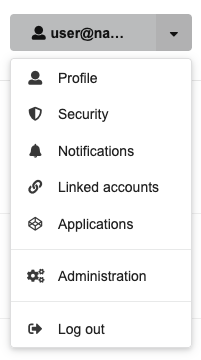
Figure 1: Access administration via navigation bar.
Communities#
In administration panel you can list communities and delete communities.

Figure 2: List of communities. Delete a community by clicking “Delete…”.
Remote files#
Remote files feature is managed through administration panel. The feature can be enabled and the permissions set. The available permissions are: Any logged-in user, Administrator only, System process only (superuser) and Nobody (disable even if feature enabled). Allowed domains are added through administration panel and separated by a new line. Subdomains are not included. No wildcards supported.
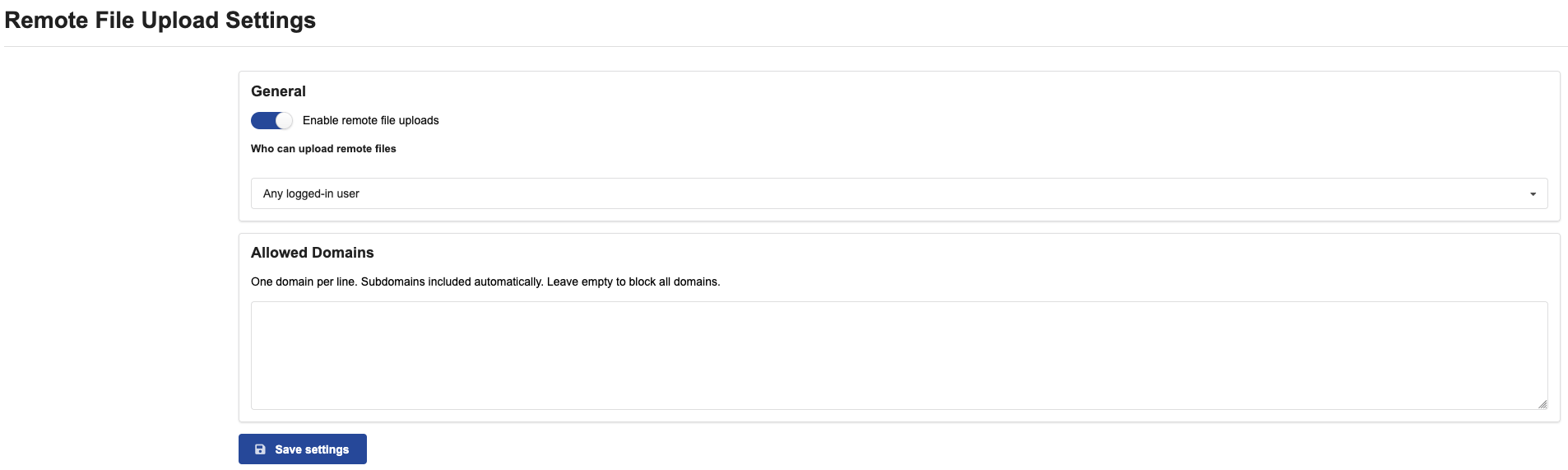
Figure 3: Remote files management in administration panel.
Audit logs#
Audit logs are listed in the administration panel. A specific log entry can be viewed by clicking “View Log…” button. Logs can be filtered by using facets or by using the search.
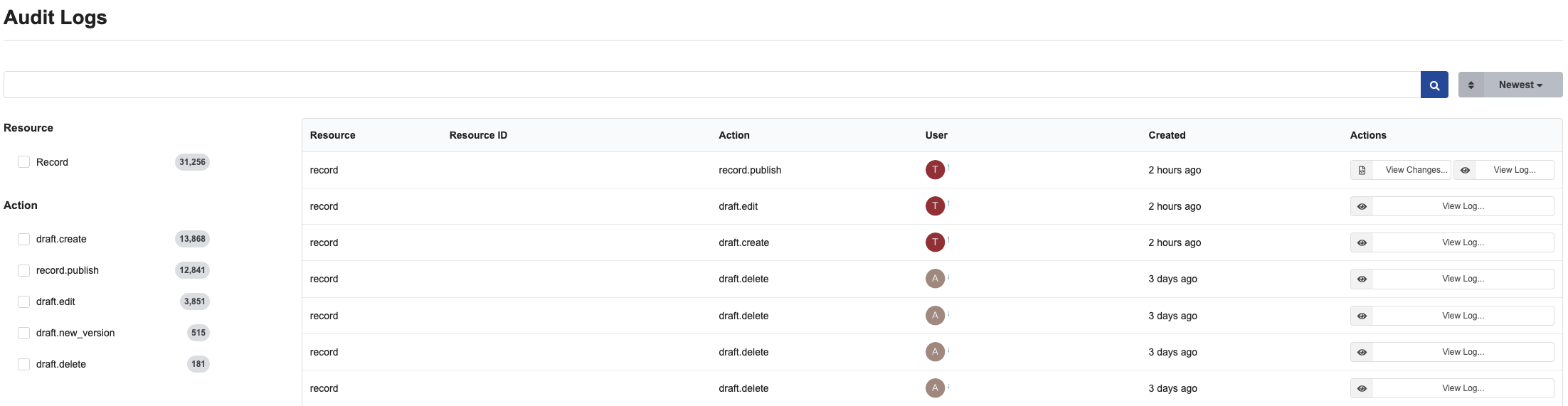
Figure 4: List of audit logs.
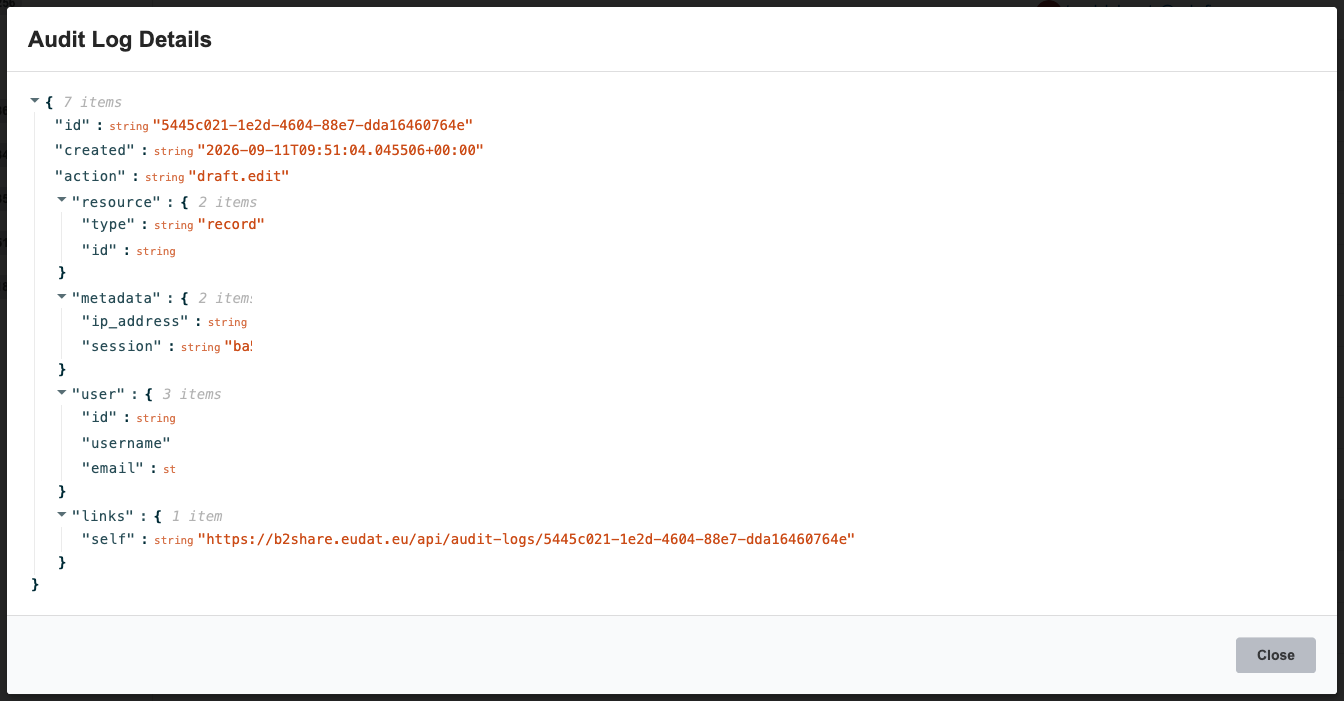
Figure 5: Audit log entry.
Drafts#
Drafts can be managed and viewed in the administration panel. If the quota is too small for a specific draft it can be increased in the administration panel.
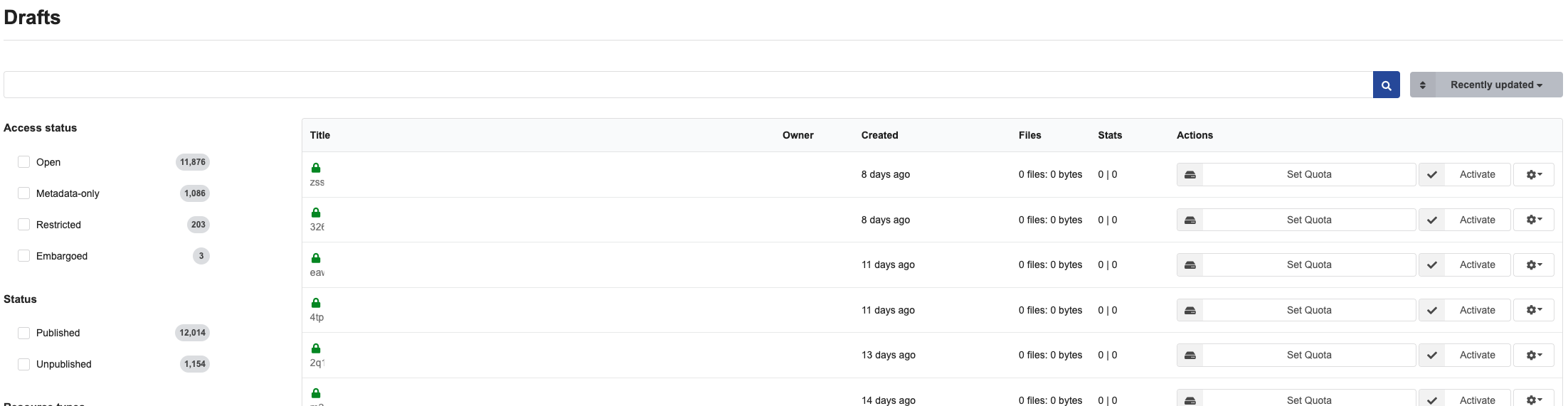
Figure 6: Draft record listing.
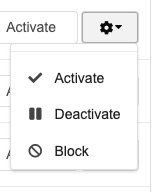
Figure 7: Draft record dropdown options.
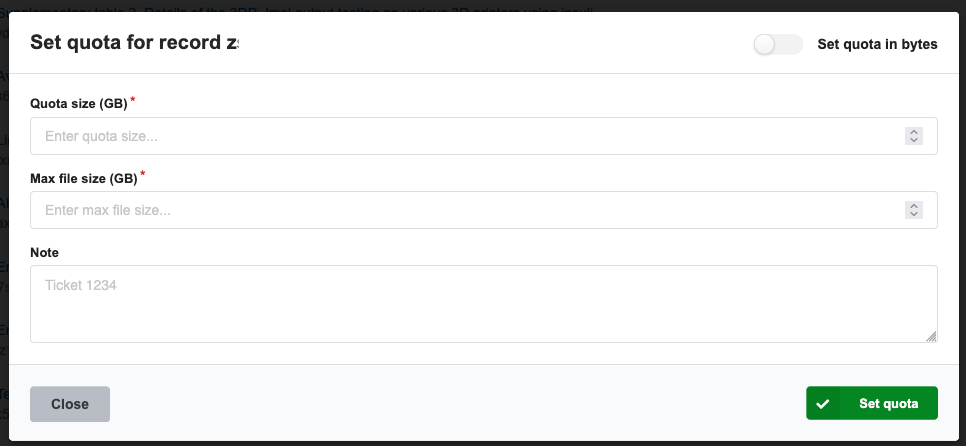
Figure 8: Set custom quota for a draft record.
Records#
Records can be managed through the administration panel. For example records can be deleted through the panel.
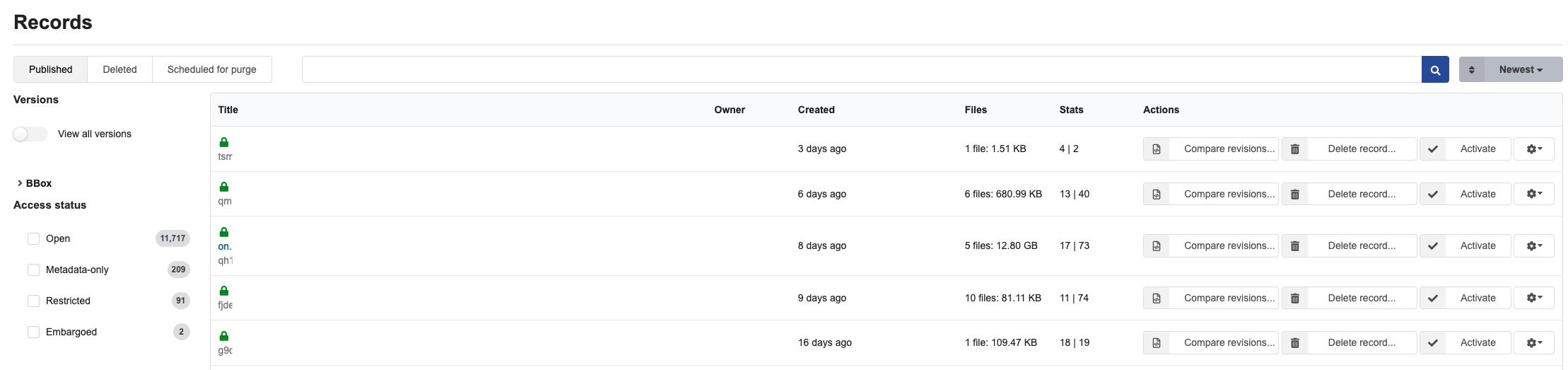
Figure 9: Records listing in administration panel.
Domains#
Domains are currently used for statistics purposes, but can be used for moderation purposes as well. For example a domain can be blocked.

Figure 10: List of domains in administration panel.
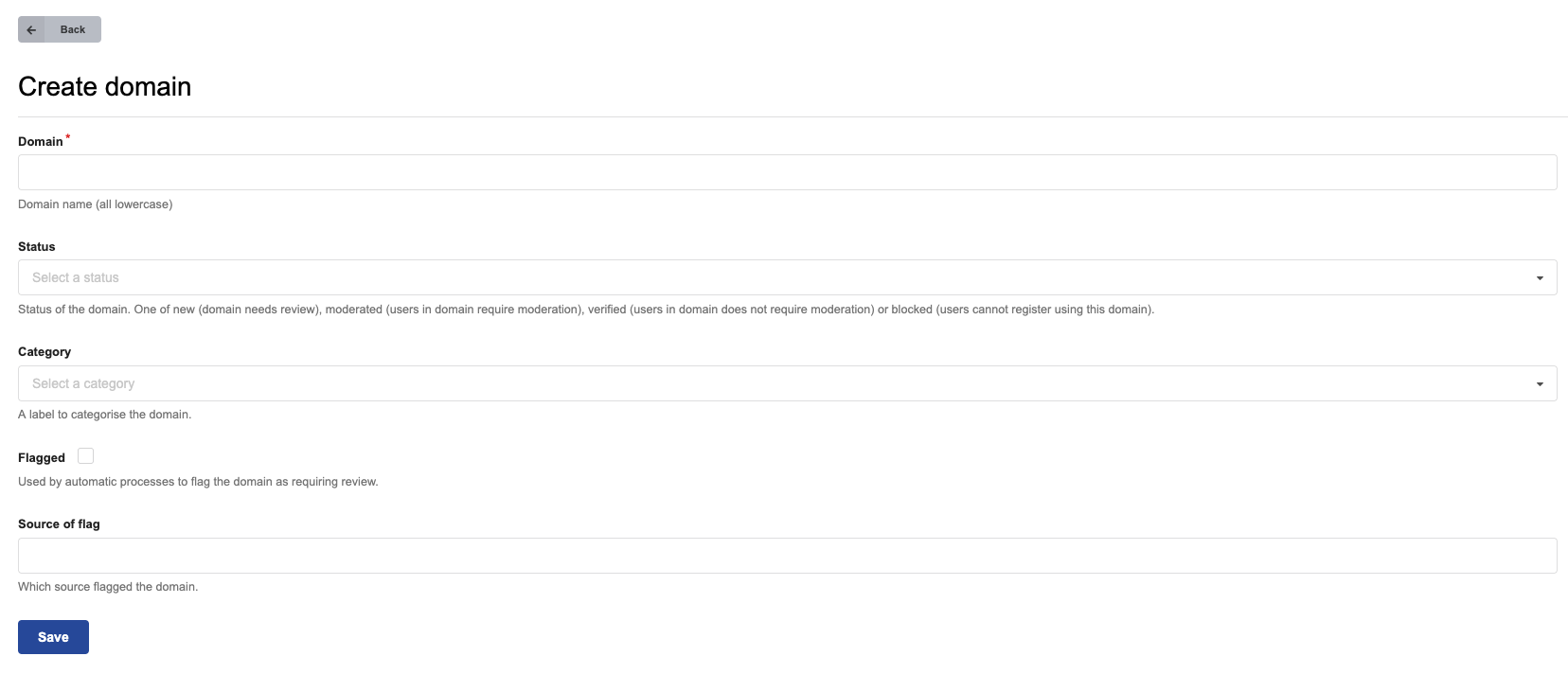
Figure 11: Add a new domain. Category field can be used to block a domain.
OAI-PMH#
B2SHARE OAI-PMH sets are managed through the administration panel. Each new community gets automatically an OAI set. New custom sets can be created through the administration panel.
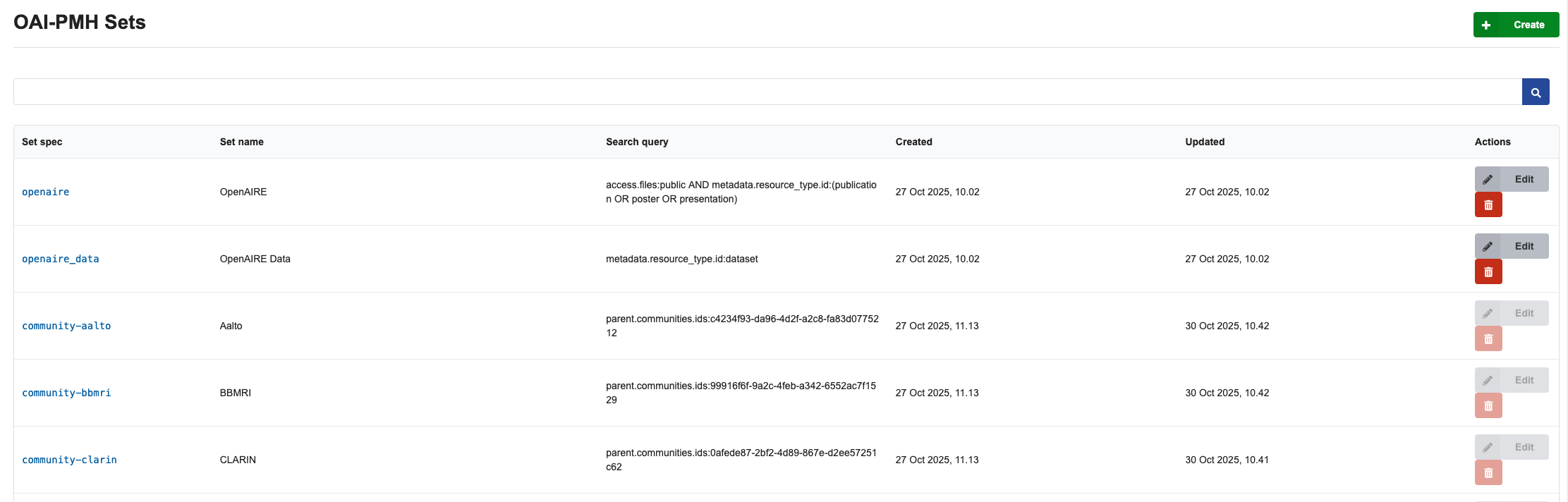
Figure 12: List of registered OAI sets in administration panel.
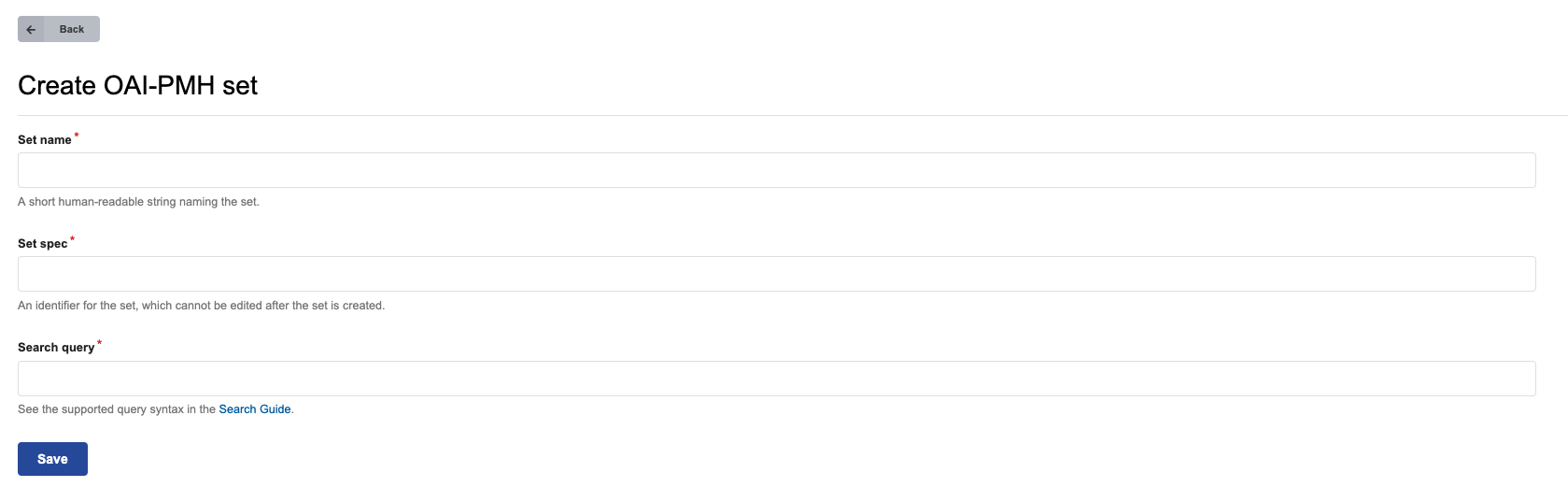
Figure 13: Create a new OAI set page.
Vocabulary types#
List of vocabularies and amount of entries in each vocabulary are listed in the administration panel. Adding new vocabularies is done via CLI.
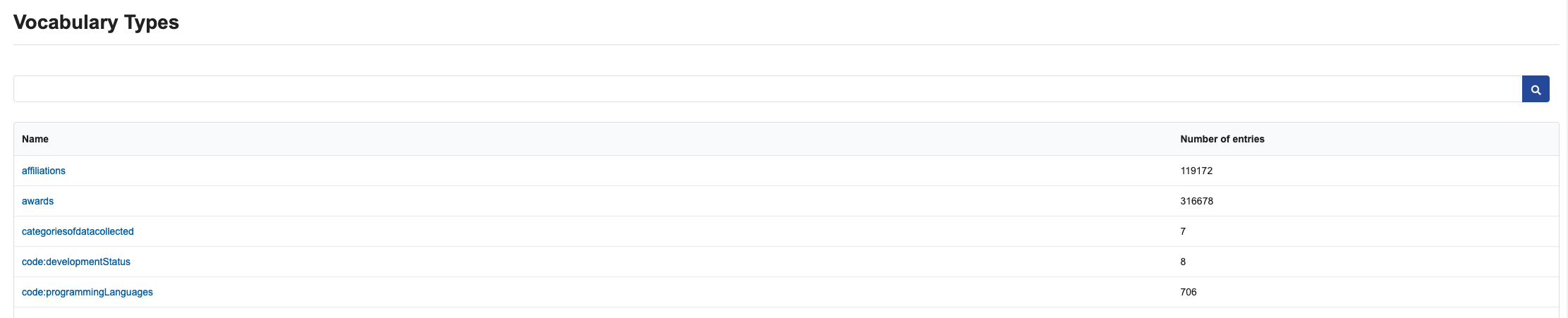
Figure 14: List of vocabularies in administration panel.
Banners#
Banner management is done in the administration panel. In the panel new banners can be created, old banners modified and deleted.

Figure 15: List of banners in administration panel.
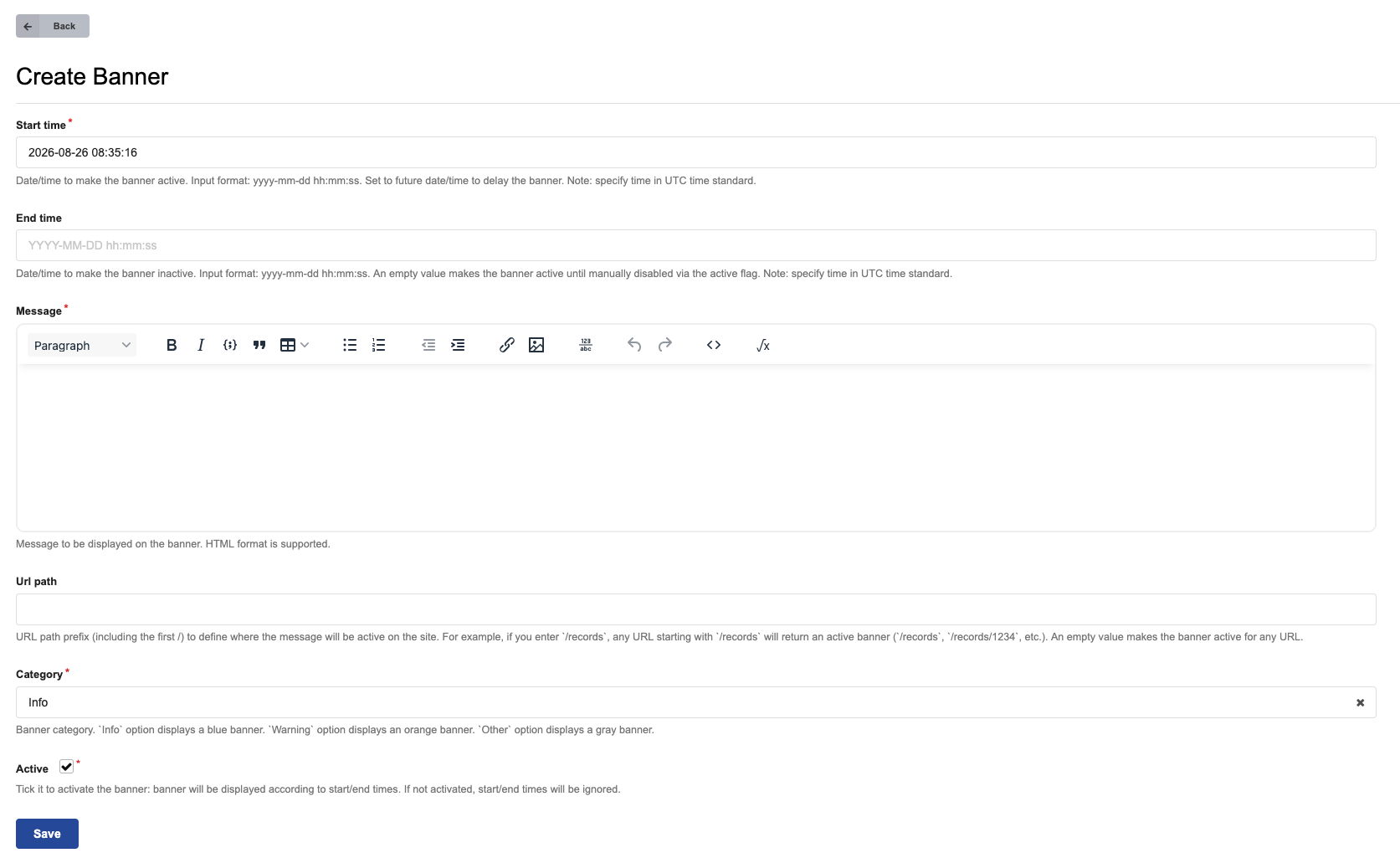
Figure 16: Create a new banner. To make the banner visible modify start- and end times and check “Active”. A path can be configured to a banner.
Pages#
Existing static pages can be managed through the administration panel. New pages have to be created through CLI.
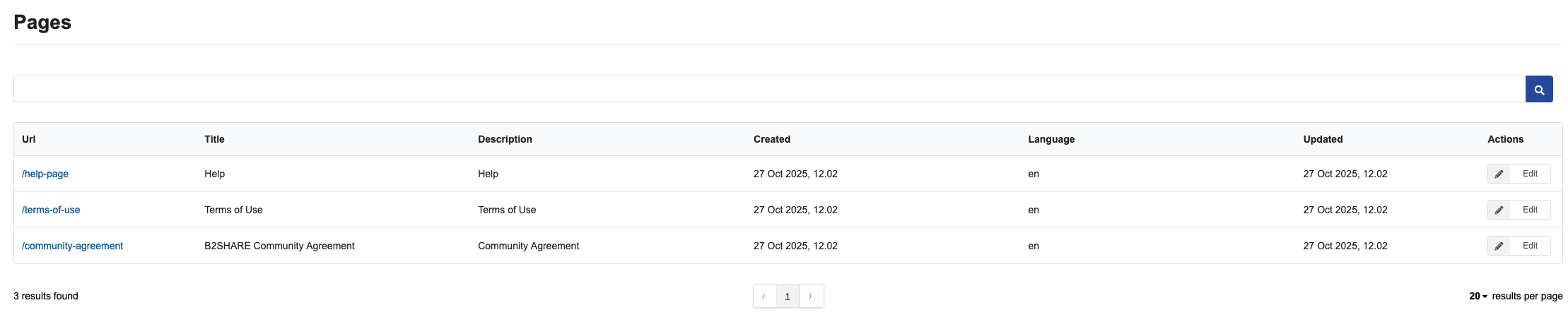
Figure 17: List of static pages in administration panel.
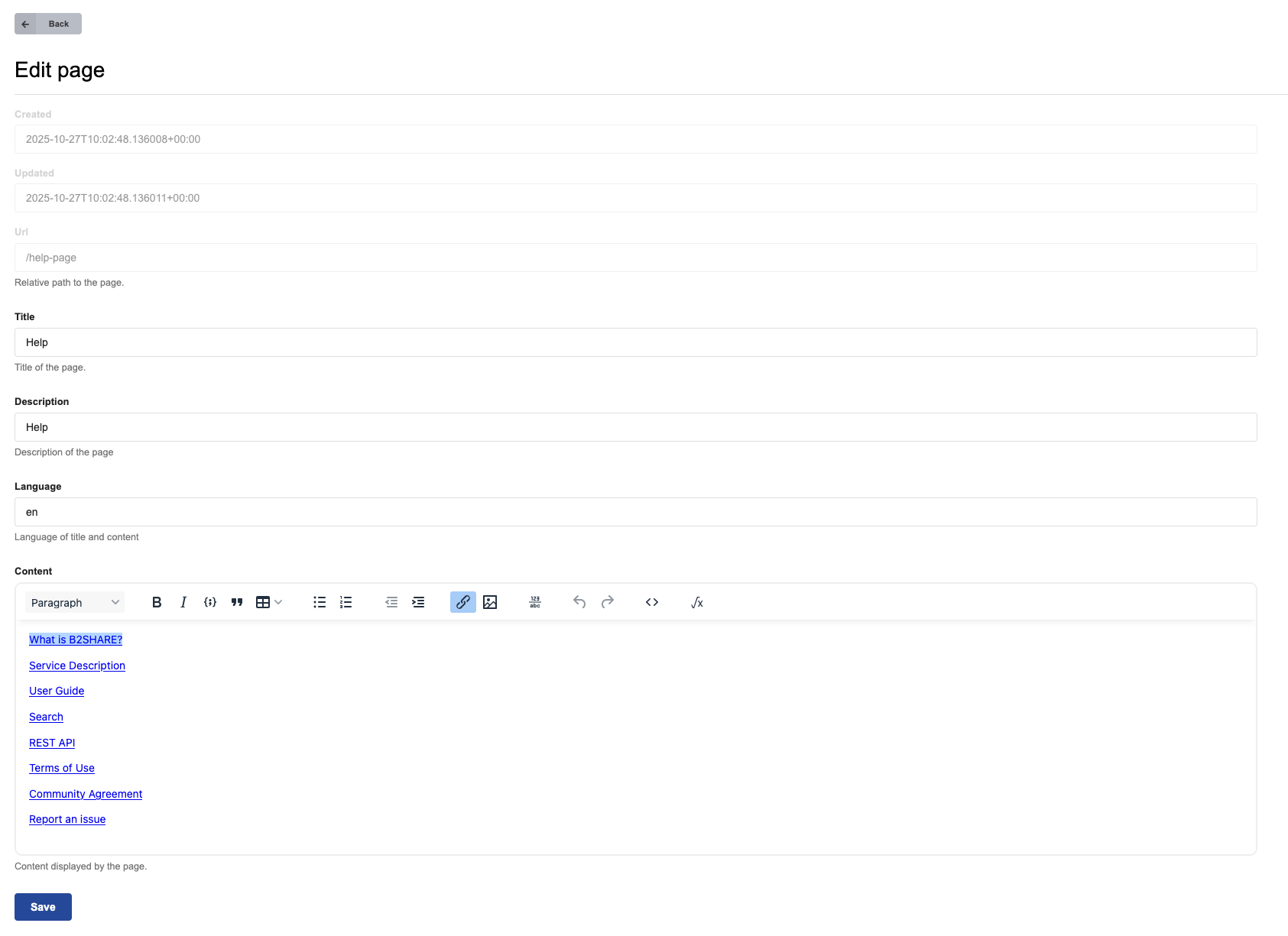
Figure 18: Edit a static page.
Jobs#
Periodic jobs (background jobs) can be managed through the administration panel. New jobs can be created and scheduled. Existing jobs can be modified and run.

Figure 19: List of jobs in administration panel.
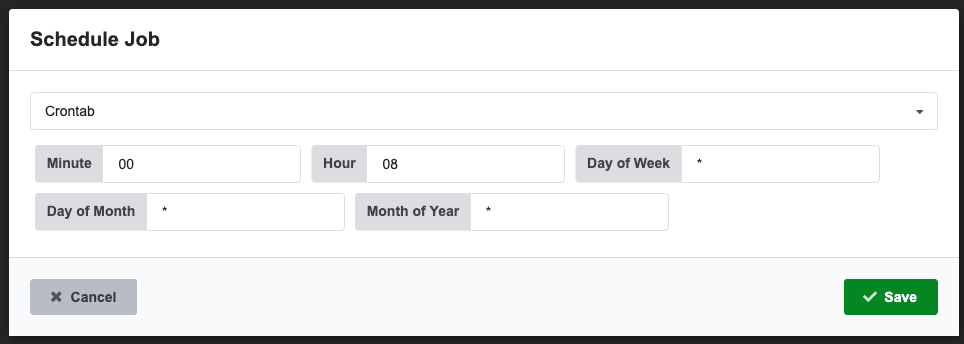
Figure 20: Schedule a job. Possible choises are interval and cron.
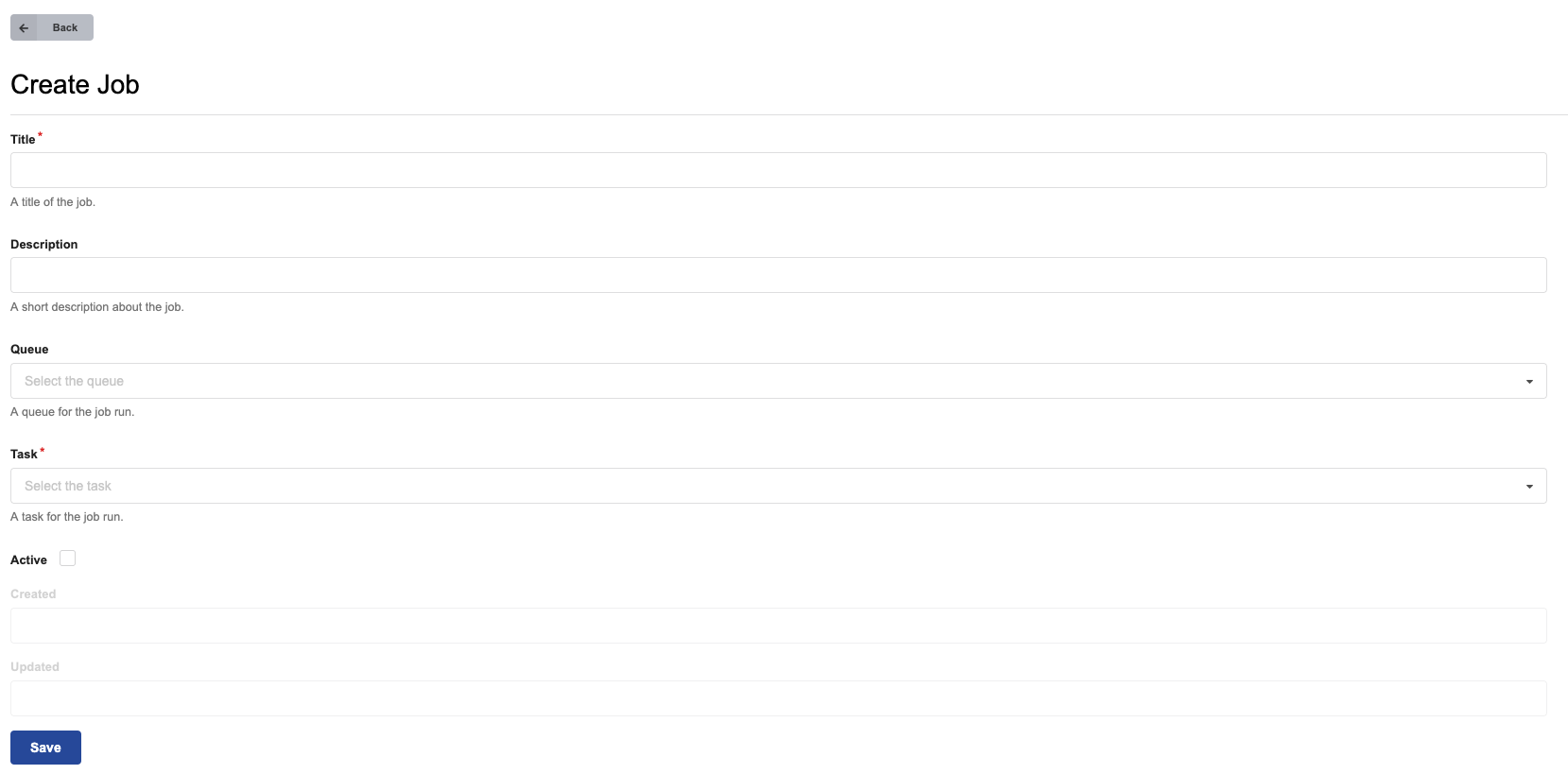
Figure 21: Create a job. Tasks are preconfigured, e.g. Update expired embargoes, Load ROR affilitations, and other vocabulary updates.
Users#
Users can be managed through the administration panel. User can be blocked, activated, verified, deactivated and impersonated. A custom quota can be set for a user if enabled in application configuration.

Figure 22: List of users in administration panel.
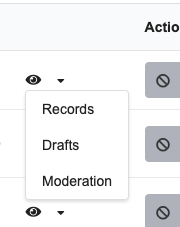
Figure 23: actions behind the eye icon dropdown.
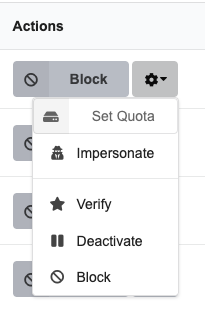
Figure 24: User settings.
Roles#
List of users with their roles is available in administration panel.

Figure 25: List of users and their roles in administration panel.
Storage overview#
The storage overview page is available at /administration/community-storage.
It shows disk usage broken down by community across both published records and drafts.
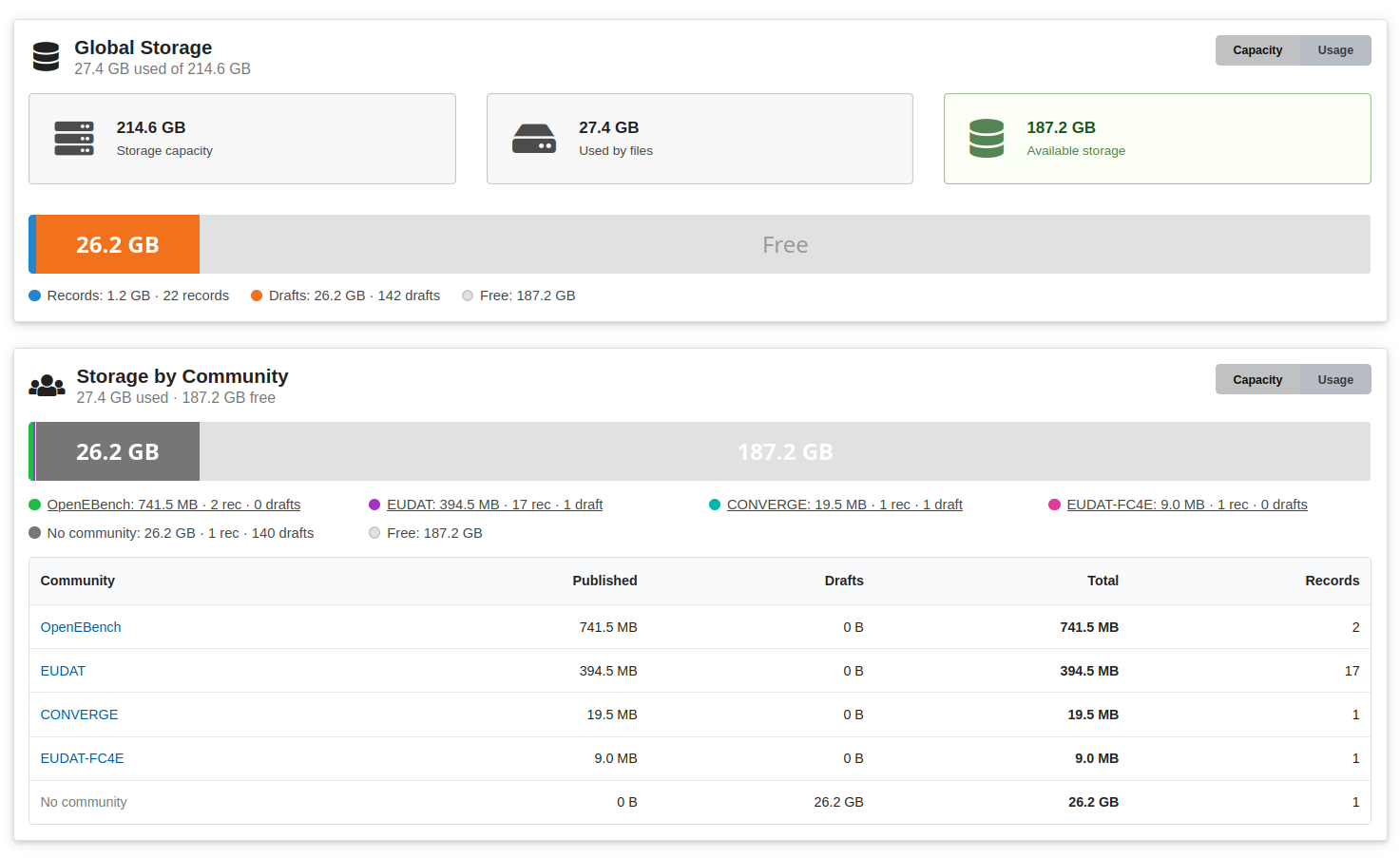
Figure 26: Storage overview page — global totals and per-community breakdown.
Global storage panel#
The top panel shows three summary cards:
- Capacity — total disk capacity of the storage location (only shown when configured).
- Used by files — bytes consumed by published records.
- Available — remaining free space (only shown when capacity is configured).
Below the cards a horizontal bar visualises usage. Published records are shown in blue, drafts in orange, and free space in grey.
The Scale toggle in the panel heading switches between two modes:
- Capacity (default) — the bar is scaled to total disk capacity; the grey free segment is visible.
- Usage — the bar is scaled to used space only; the free segment is hidden.
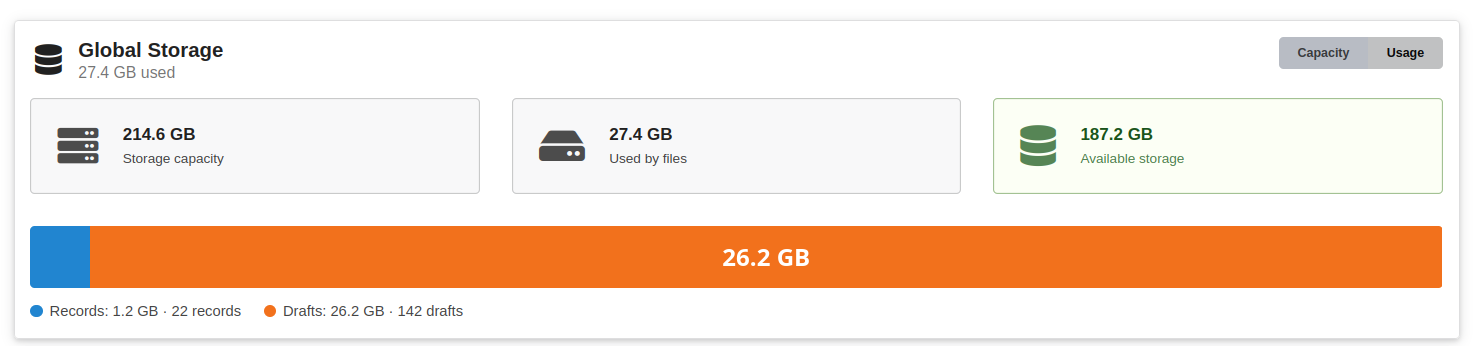
Figure 26: Global storage overview of used space
Community breakdown#
The lower panel shows the same storage data split by community.
Each community occupies one coloured segment in the bar. Records not assigned to any community are grouped in a grey No community segment at the end.
The legend and table below the bar list, for each community:
| Column | Description |
|---|---|
| Total | Combined bytes used by published records and drafts |
| Published | Bytes used by published records |
| Drafts | Bytes used by draft records |
| Records | Number of published records |
Click a community name to open the per-community detail view.
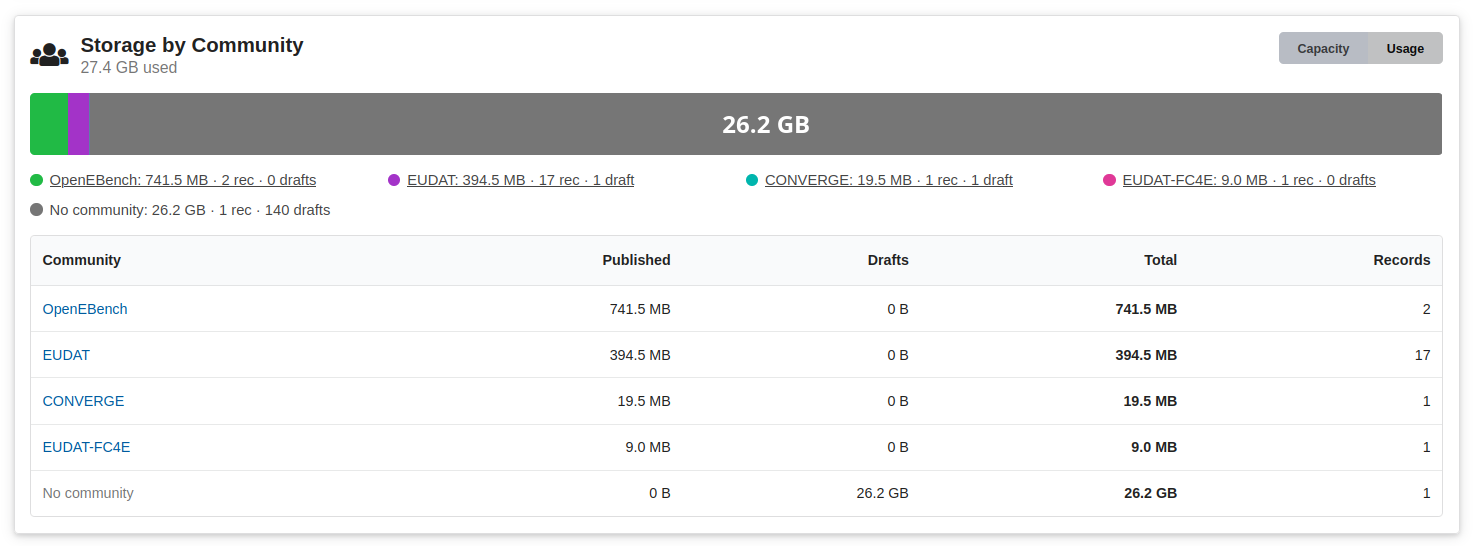
Figure 27: Per-community storage detail view.
Per-community detail#
Navigating to /administration/community-storage?community_id=<uuid> (or clicking a community in the breakdown table) shows storage statistics for that community only, using the same global / community panel layout.
Last update : 01.10.2026
Last review : 01.10.2026