Managers#
Managers maintain a B2INST community’s membership and also have Curator permissions. They can invite people, manage pending invitations, change eligible members’ roles and remove memberships. A Manager can manage the Member, Curator and Manager roles; an Admin or Owner must manage higher roles.
Invite a person#
- Sign in, open the community, and select Members. Select Invite from the membership or invitations view.
- Choose People to search registered B2INST users by email, name or username. This search shows accounts with public profiles. Alternatively, use Email Invite with the email address of a registered account.
- Select Member, Curator or Manager, according to the work the person needs to do. Add an optional invitation message and select Invite.
- Open Members > Invitations to monitor the invitation. The recipient must accept it before becoming a member.
Email invitations do not create B2INST accounts. The sender is not told whether a submitted address matches an existing account. Ask a new participant to register before sending their invitation.
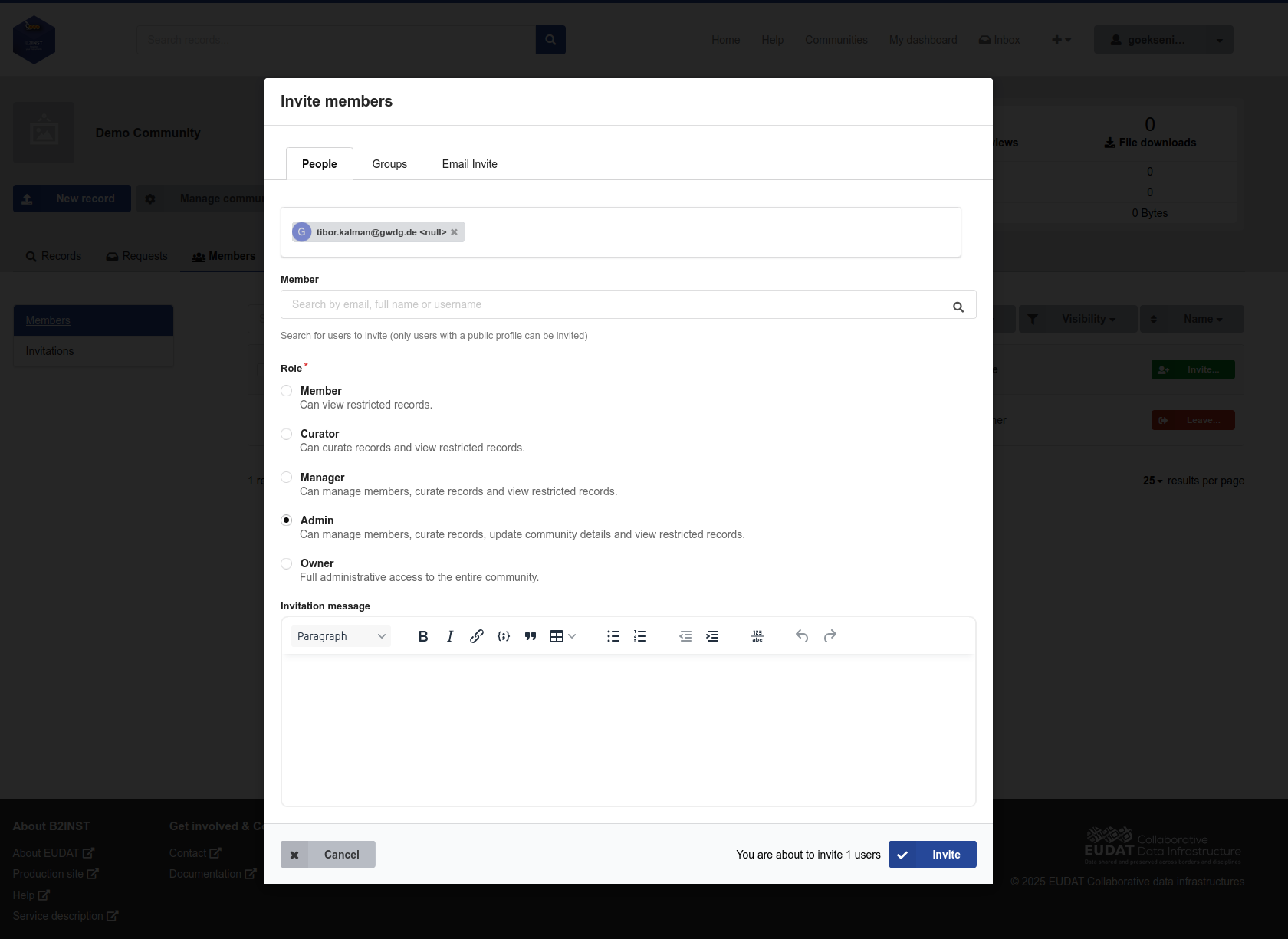
B2INST demonstration of the invitation form, captured with Owner permissions. A Manager can assign only Member, Curator or Manager; the Admin and Owner choices shown here require higher privileges. The community and account details are example values.
When group support is enabled, Groups adds an available group directly to the community with the chosen eligible role. Groups do not receive invitations or accept them; their membership is different from the individual invitation workflow.
Follow up on invitations#
The Invitations view separates Open and Closed requests and provides filters for role and status. Open an invitation to read its conversation or add a comment. While an invitation is open, you can change its proposed role within your management permissions or cancel it when it is no longer needed.
The invited user accepts or declines the invitation. A Manager should not accept on their behalf. Expired, declined or cancelled invitations do not create active membership; send a new invitation if the person should still join.
Update or remove memberships#
- Open Members and find the person using search or the role filters.
- Use the role control to assign another eligible role. Both the person’s existing role and the proposed role must be within the roles you can manage.
- Use Remove when the person no longer needs community membership, then confirm the action. This removes community membership rather than deleting their B2INST account or their instrument records.
You cannot change your own role. Another authorized administrator must make that change. B2INST also requires at least one Owner to remain in each community.
Invited users start with Hidden membership visibility. You may hide another user’s membership, but only that user can make their own membership Public. Account profile visibility is a separate setting, described in the member guide.
Managers can review records and access restricted community records, but cannot update the community’s profile, pages or policies. Refer those changes to an Admin or Owner. The illustrated management guide shows the membership and invitation screens in more detail.
Last update : 04.10.2026
Last review : 04.10.2026