B2INST communities#
B2INST communities organise instrument records for a research project, institution, facility, or scientific discipline. A community provides a shared record catalogue, curation responsibilities, submission policies, and optional metadata fields that extend the core B2INST instrument schema.
This section explains the workflows for contributors, reviewers, and community administrators. For instrument registration from start to finish, see the user manual. The illustrated management walkthrough covers community setup and invitations.
Find a community#
Select Communities in the header of B2INST, or open the community directory. Search by name and open a community to browse its instrument records. Read the About and Curation policy pages when provided, and sign in before submitting a record or managing a community.
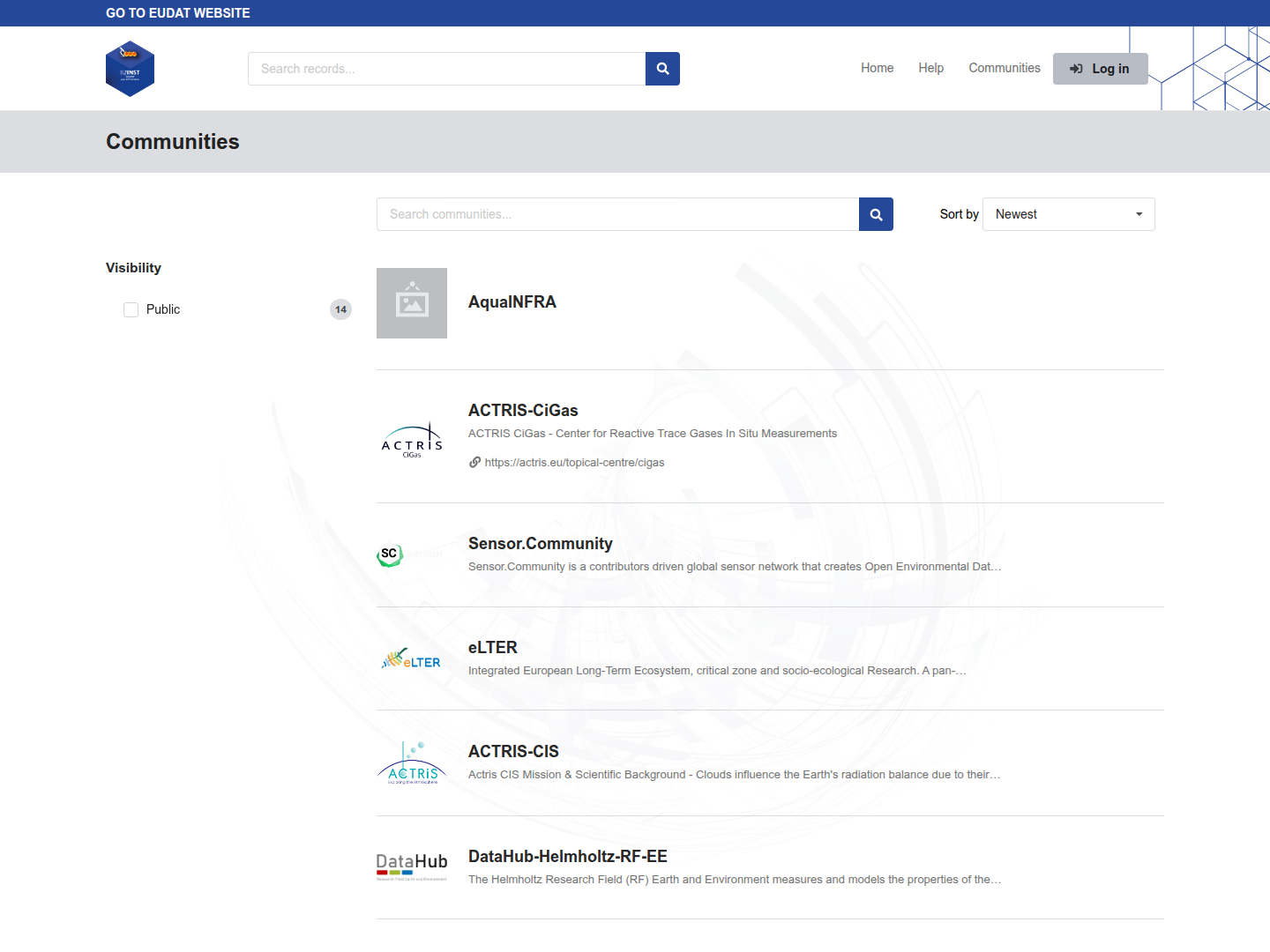
Figure 1. Public B2INST communities, captured on 2 October 2026.
The Records tab searches within the selected community. Other tabs and management actions depend on your role and the community’s settings. View all versions includes earlier published versions in the record list.
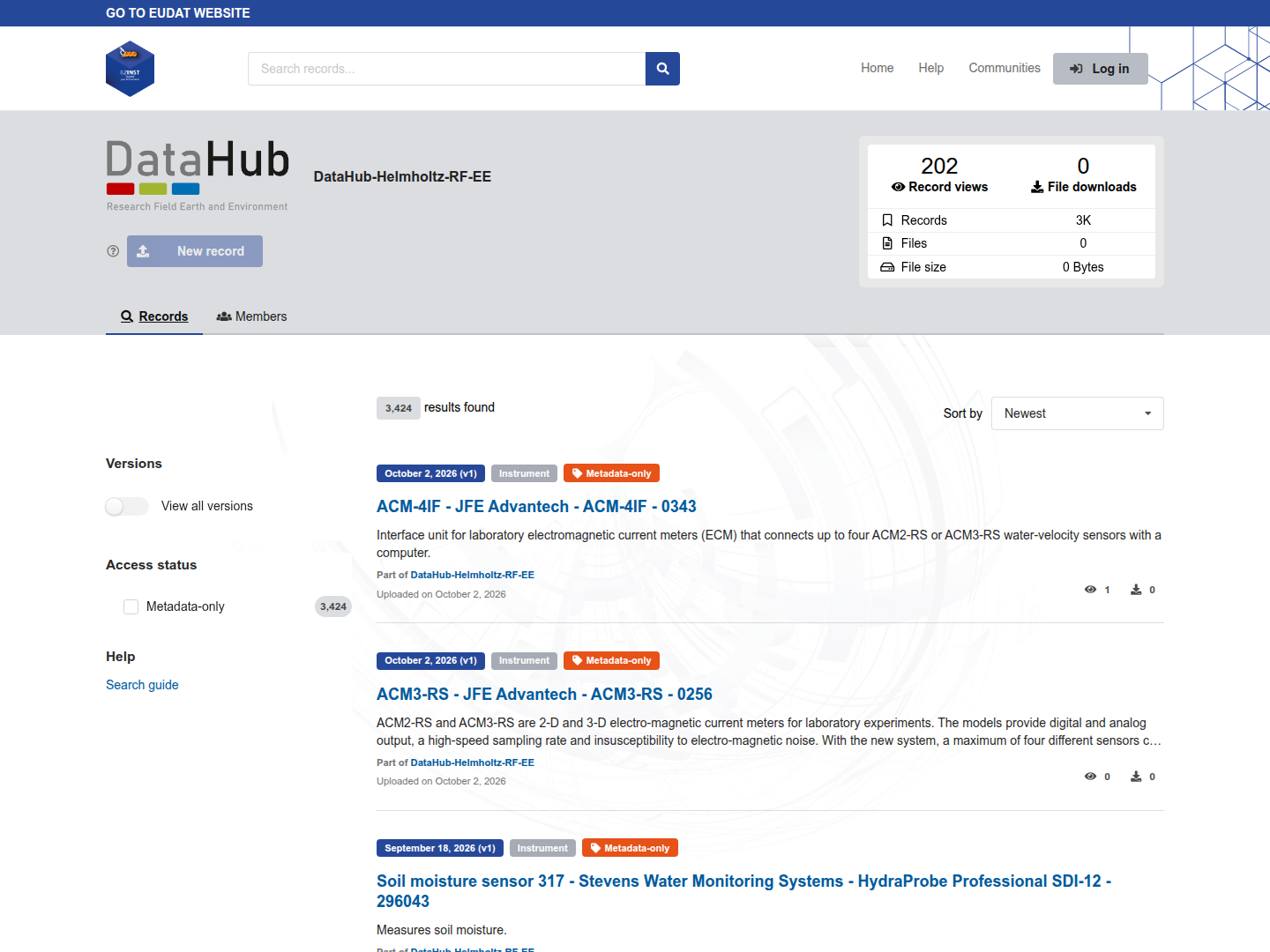
Figure 2. An instrument community’s record catalogue. This screenshot was captured without signing in, so the New record action is unavailable.
Community roles#
Community membership is separate from having a B2INST account. The assigned role determines which community actions a person can perform.
| Role | Main responsibilities | Guide |
|---|---|---|
| Member | Participate and submit instruments according to the submission policy; access restricted records when the relevant policy permits it. | Members and contributors |
| Curator | Review submissions, discuss corrections, curate metadata, and accept or decline requests. | Curators |
| Manager | Curate records and manage memberships and invitations up to the Manager role. | Managers |
| Admin | Manage community settings and policies, curate records, and manage memberships up to the Admin role. | Community administrators |
| Owner | Exercise full community administration, including assigning Owners, changing the community identifier, and deleting the community. | Requesting a community and ownership |
Only a B2INST service administrator can create a community. Becoming an Owner of one community does not grant permission to create another. The person who creates a community starts as its Owner and can delegate community roles afterwards.
A community’s Owner role, the account that owns a record, and the instrument’s Owner metadata are different concepts. Adding a record to a community associates it with that community; it does not make the community another uploader account or replace the instrument’s ownership metadata. A record can be associated with more than one community.
Visibility and access#
The settings control several separate things:
- Community visibility determines who can open and discover the community.
- Members visibility controls the intended visibility of its membership list. Each membership also has a Public or Hidden setting, separate from account-profile visibility.
- Record and file visibility determine whether instrument metadata and attachments are public or restricted.
- Restricted records policy determines which community roles can access restricted records through their membership.
Public communities can contain restricted records. Being signed in, or being a Member, does not automatically give access to every record or file. Owners of records and people with separately granted access can have permissions independent of their community membership.
See Community settings before configuring access. That guide also describes current limitations in Hidden membership visibility and in access checks for records associated with communities that have different policies.
How publication works#
Two settings work together. Records submission policy determines who can submit; Review policy determines which eligible submitters can publish without review. A direct-publication policy does not override restrictions on who may submit.
Direct publication#
The review policy can allow direct publication for community Curators and higher roles, all community members, or all eligible authenticated submitters. It can also require review for every submission. The effect therefore depends on both the policy and the submitter’s role; direct publication is not automatically available to every Member.
When permitted, the deposit form offers Publish to community. Complete the instrument metadata and any community fields, finish optional file uploads, check visibility, and confirm publication. Otherwise use Submit for review. See Members and contributors for the submission steps.
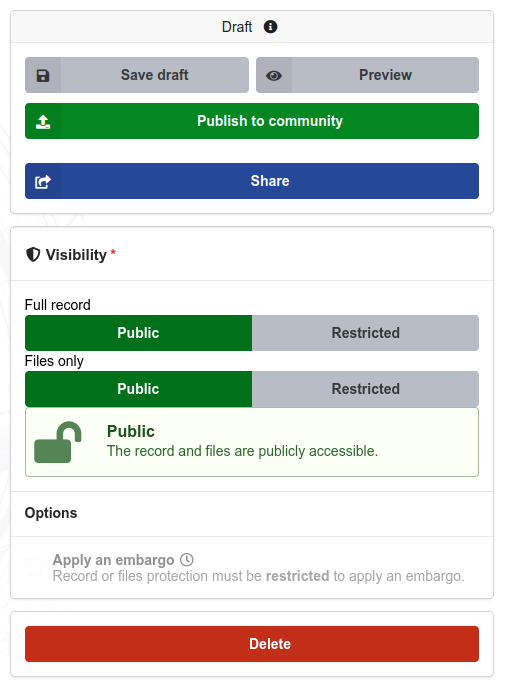
Figure 3. The Publish to community action when direct publication is available. This view shows the draft controls; the community selector is outside the crop.
Publication through review#
For a new instrument draft:
- The contributor selects a community, completes the record, and chooses Submit for review.
- A request becomes available to the contributor and the community’s reviewers.
- A Curator, Manager, Admin, or Owner previews the draft, discusses any corrections, and accepts or declines the request.
- Acceptance validates and publishes the draft and associates it with the community. Declining does not publish the draft.
| Stage or outcome | What it means for a new draft |
|---|---|
| Draft | Work has been saved but has not been published or submitted for review. |
| Submitted for review | A community review is pending; saving or submitting alone does not publish the record. |
| Accepted | The submission has been accepted and published successfully. |
| Declined, cancelled, or expired | The request has closed without publishing the draft. The contributor can prepare a new submission using the available draft actions. |
Follow the request’s comments and status through My dashboard > Requests. For draft reviews, use Accept and publish or Decline; see the curation guide for reviewing and editing a submitted draft.
An inclusion request for an already published record is different: accepting it adds the community association without creating another publication or a new Handle. Similarly, editing published metadata is separate from creating a new version or submitting a new instrument for review.
Community schema extensions#
Community fields describe information beyond the core PIDINST instrument metadata, such as a facility code or an instrument’s operating environment. The core B2INST instrument fields remain part of the record.
Work with the service administrators to prepare and install an extension. Consult the schema extension guide for supported field definitions, examples, and current validation, display, and search limitations. Reviewers should check community requirements explicitly rather than assuming every extension rule is enforced by the API.
Next steps#
- To register an instrument, follow Members and contributors.
- To review records, read Curators.
- To invite people and assign roles, read Managers.
- To maintain branding and policies, read Community administrators and Community settings.
- To establish a new community or delegate ownership, read Requesting a community.
- To define additional instrument metadata, read Community schema extensions.
Last update: 06.10.2026
Last review: 06.10.2026