Users and community members#
You can browse public B2INST communities and their public instrument records without joining a community. Signing in lets you submit records when the community’s submission policy allows it. Membership gives you a role in a particular community; the ordinary participation role is Member.
Find a community and submit an instrument#
- Open B2INST, select Communities, and find the community relevant to your instrument.
- Read its About page and Curation policy, when available. Check the accepted instruments, metadata requirements and review process.
- Sign in and select New record from the community page, or choose the community in the record form.
- Complete the instrument metadata, any community-specific fields and any file uploads. Follow the record submission guide.
- Use the available publication action. Submit for review sends the draft to the community’s reviewers; Publish or Publish to community publishes directly when your permissions and the community policy allow it.
A public community with an Open submission policy accepts submissions from authenticated non-members. A Closed submission policy, or a Restricted community, requires membership. Membership alone does not guarantee publication without review: the community’s review policy controls that separately.
Follow a submitted request and its comments through My dashboard > Requests. Acceptance of a draft submission publishes the record. See publication through review for the full workflow.
Become a member#
B2INST currently uses invitations for individual membership; there is no general request-to-join button. Contact a community Manager, Admin or Owner if you need access or a role in the community.
- Sign in to the B2INST account that received the invitation.
- Open the invitation from your notification or Inbox.
- Check the community and proposed role. You can discuss the invitation using the request’s comment field.
- Select Accept or Decline, add an optional comment, and confirm your choice.
Accepting creates your membership with the proposed role. Declining does not join the community. An expired or cancelled invitation must be replaced with a new invitation.
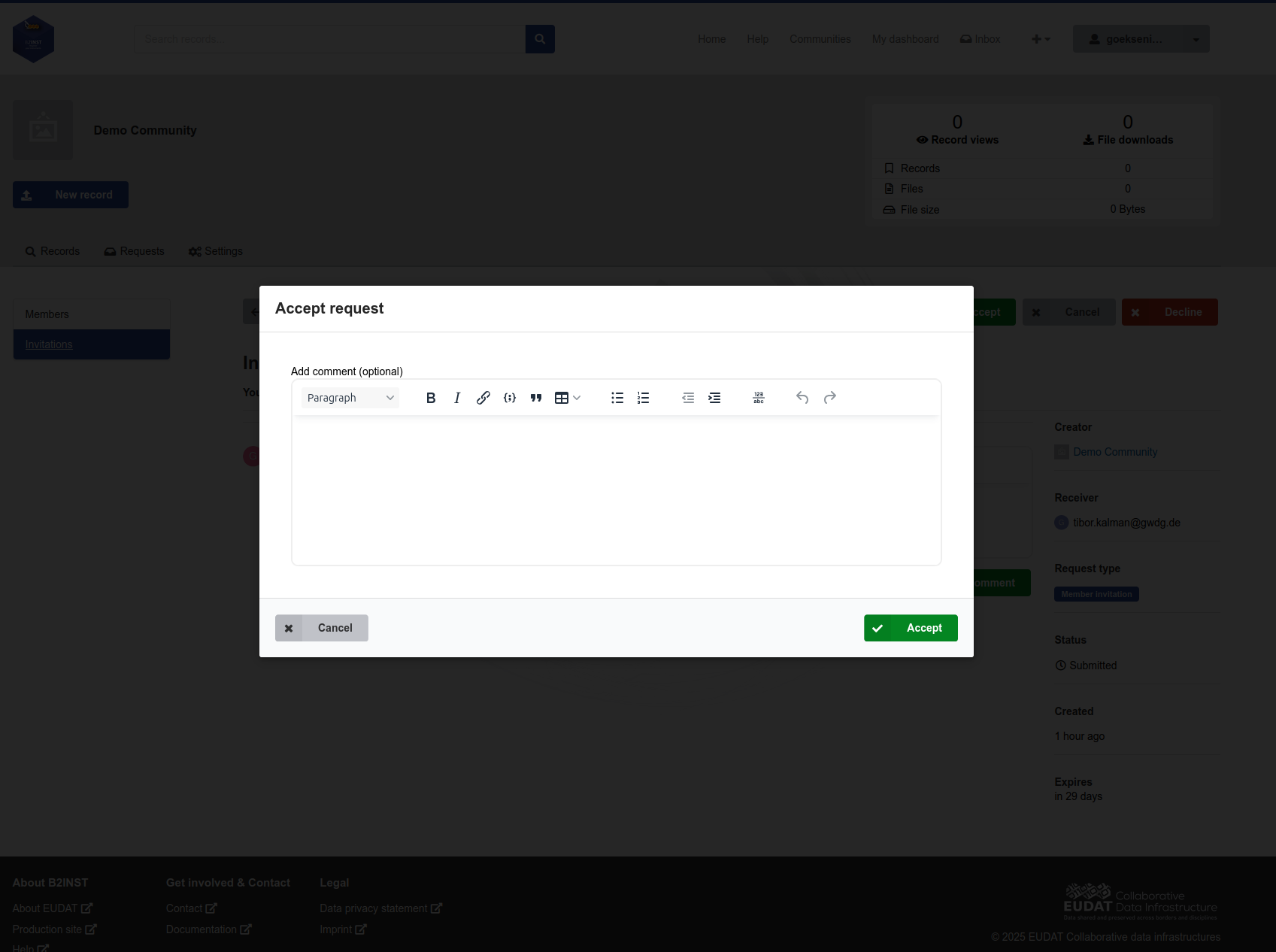
B2INST demonstration: the invitation receiver can add an optional comment before confirming acceptance. Community names, account details and dates are example values.
Understand access and visibility#
A Member can read restricted records and files when the community’s restricted-record policy permits ordinary members to do so. When access is limited to Curators and higher roles, membership alone is insufficient. Ownership or a separate access grant can also give access to an individual record.
Your account’s profile visibility and your membership visibility are separate:
- A public account profile makes you discoverable in the People search used for invitations. A manager can also use Email Invite for a registered account.
- Membership starts as Hidden. Where the membership controls are available, you can change your own membership to Public or Hidden. The community’s member-list policy also affects how memberships are displayed.
These visibility choices do not change your role or grant access to records. Use Leave in the community membership view if you no longer need membership; a community must retain at least one Owner. You cannot change your own role. Ask an authorized Manager, Admin or Owner to change it.
See the community overview for the other roles and the illustrated membership workflow for the available controls.
Last update : 04.10.2026
Last review : 04.10.2026